
UTM tags
UTM tags tell you which channel actually brought each attendee. What makes them worth the trouble here is that the platform keeps them with that person for the whole session, so a tag you put on the entry link is still with them when they open your information page, click a button inside the room and land on your thank you page at the end.
Tagging the entry link
Take the general guest link of your webinar or of your room, which is the first thing in "Links" in its menu, and add your parameters to the end of it. That link carries no query string of its own, so the first parameter goes after a question mark and the rest are joined with ampersands.
https://www.mywebinar.com/your-room?utm_source=newsletter&utm_medium=email&utm_campaign=marchPublish that address rather than the bare one, and everybody who arrives through it carries those tags for the rest of the session. Build the address with a campaign URL builder rather than typing it out, because a mistyped parameter looks exactly like a correct one until the numbers fail to add up.
Where the tags travel next
Two places pick them up on their own.
- The thank you page is where attendees go when the webinar ends or when they leave early. Its field is called "Thank you page" and sits on the "General" tab, in the same block as the logo and the banner. A permanent room does not have this field at all.
- CTA buttons and banners inside the room send people to whatever address you gave them. Call to action buttons and banners covers building those.
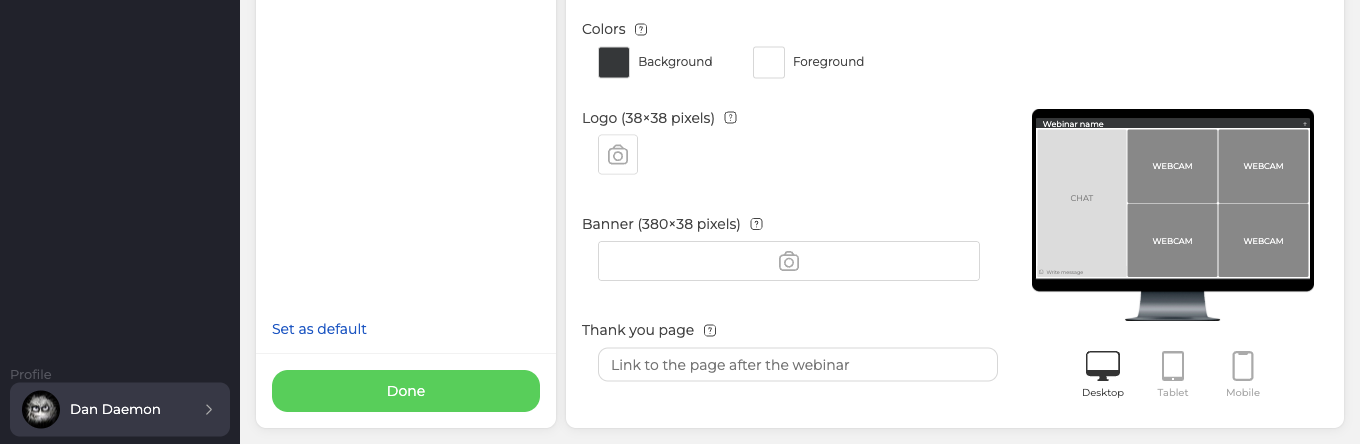
One rule decides what happens at both. A link you leave without tags picks up the tags the attendee arrived with. A link that already carries tags of its own keeps them, and the arrival tags are dropped.
That choice is yours to make per link. Put your own tags on when you want to measure the element itself, for instance which of two banners earns more clicks, and leave the link bare when you would rather keep following the source the person came from.
The information page is the exception
The page somebody lands on right after registering is set in "Info page", at the foot of the "Entry" tab, and it inherits nothing. Send a visitor in through a tagged link and they reach that page with a clean address, so an untagged info page link stays untagged.
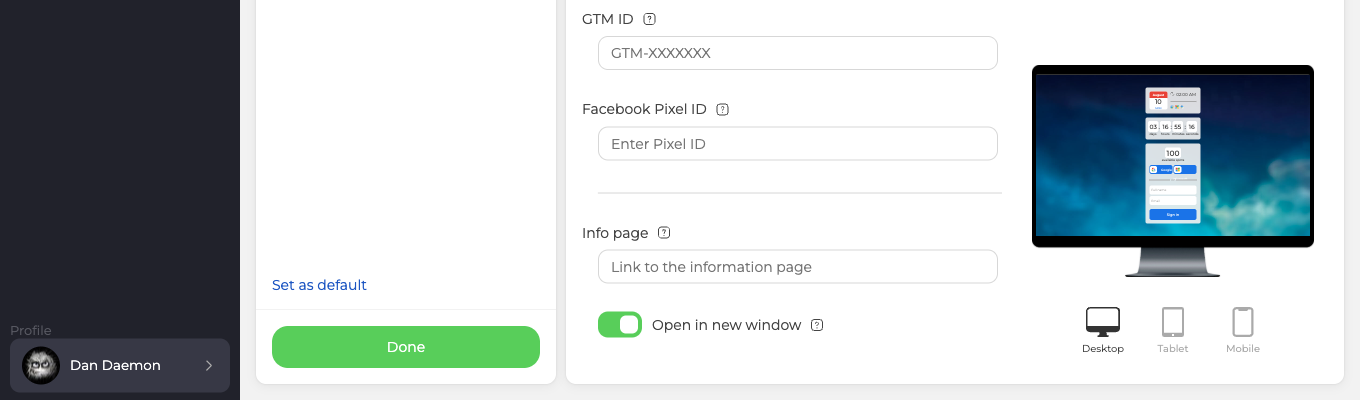
That is also what the panel means when it notes that the link supports UTM tags. It supports the ones you put on it. If you want those visits attributed, tag that address yourself. Information page after registration covers the field and the window it opens in.
The buttons in webinar emails
Every email carries an "Unsubscribe" button. The 3-day or 1-day reminder, whichever reaches a person first, also carries "Join the webinar" and "Next time", unless that person has already received an invitation or a ticket for this webinar by email. Each of the three buttons has a URL field of its own on the "Emails" tab of the webinar settings, at the bottom.
- Button "I will attend" for the page somebody lands on after clicking "Join the webinar".
- Button "Next time" for the page after declining.
- Button "Unsubscribe" for the page where somebody opts out of future invitations.
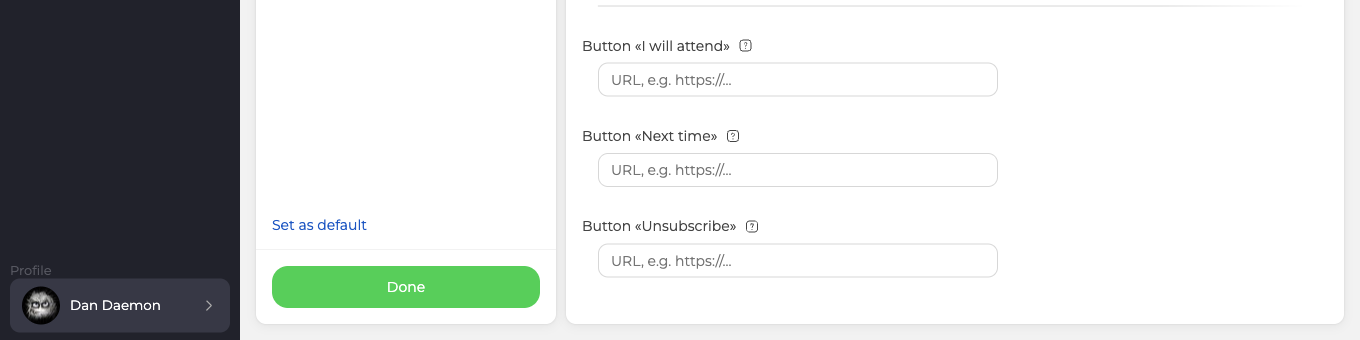
These three never inherit anything, and the reason is worth understanding rather than memorising. Tags are picked up when an attendee clicks a tagged entry link, and at the moment an invitation is sent nobody has clicked anything yet. There is no arrival to inherit from, so whatever you type into those three fields is all they will ever carry.
Reading the results
The tags travel in the address of the pages you sent people to, so they turn up in whatever analytics you already run on those pages. What the platform itself records about where your audience came from is in Webinar statistics and reports.
Checking it before you publish
Read your tagged address back once before it goes out. A mistyped parameter looks exactly like a correct one until the numbers fail to add up, and one pass per campaign is enough to catch it.
There is one thing not to be alarmed by while you check. Following a tagged entry link takes you on to the session address, and your parameters are no longer in that address bar. That is simply how entry works and it does not mean the tagging failed. The place where a tag has to turn up to be worth anything is further along, on your information page, on your thank you page or on whatever a CTA button opens, so that is where to look.
If your tags survive the entry link but never reach your analytics, open the online chat and tell us the link you published and the page you expected them to land on.
Frequently asked questions
My parameters disappeared from the address bar as soon as I followed the link. Did the tagging fail?
No. Following a tagged entry link takes you on to the session address, and your parameters are no longer in that address bar, which is simply how entry works. The place a tag has to turn up to be worth anything is further along, on your information page, on your thank you page or on whatever a CTA button opens, so that is where to look.
Can I tag the link to a permanent room the same way?
Yes, the general guest link of a room takes parameters exactly as a webinar link does, and it is the first thing in "Links" in its menu. The difference comes at the end, because a permanent room has no "Thank you page" field at all, so there is no exit page for the arrival tags to land on.
Should I put my own tags on a CTA button, or leave it bare?
Tag it when you want to measure the element itself, for instance which of two banners earns more clicks, and leave it bare when you would rather keep following the source the person came from. A link that already carries tags of its own keeps them and the arrival tags are dropped, while a link you leave without tags picks up the tags the attendee arrived with. That choice is yours to make per link.
Somebody left the webinar halfway through. Do I still see where they came from?
Yes, provided you left the link without tags, because an untagged link picks up the tags the attendee arrived with and the platform keeps those tags with that person for the whole session. The thank you page is where attendees go when they leave early as well as when the webinar ends, so an early exit still lands them on a tagged address.
Will the tags show up in my webinar statistics inside the panel?
They are read in your own analytics rather than in the panel. The tags travel in the address of the pages you sent people to, so they turn up in whatever analytics you already run on those pages. What the platform itself records about where your audience came from is in Webinar statistics and reports.
