
How to choose and pay for a plan
What you pay depends mostly on two things, the number of attendees and the amount of cloud storage. The plan you pick also sets how many speakers can be on air at the same time and the quality of your recordings.
The free Starter plan
Every account is on the free Starter plan from the moment you register. The plan itself never expires, though a free account does have to be signed into every six months to survive, and there are technical limits:
- 5 attendees
- 2 speakers at once
- 1 autowebinar a day
- 20 minutes of recording
- webinar recording up to 1080p
- 500 MB of cloud storage
- no RTMP or OBS broadcasting
- no recording share link
- no Public API and no custom domain
The number of live webinars is not among them. You can run as many as you like, on any plan, with no daily cap.
The Starter plan is there so you can try the core features properly. You can create webinars, add attendees and speakers, test screen and document sharing, and record.
It is intended for non-commercial use, and it places a watermark on the live broadcast and on the recording.
Choosing a paid plan
The simplest way to choose is by the number of viewers you expect. If you already have a customer base, or you know roughly how many people will attend, this is an easy call.
If you have no idea how many viewers to expect, create a landing page on our platform and collect registrations first. Everyone who signs up through that landing page appears automatically in the list on the "Attendees" page.
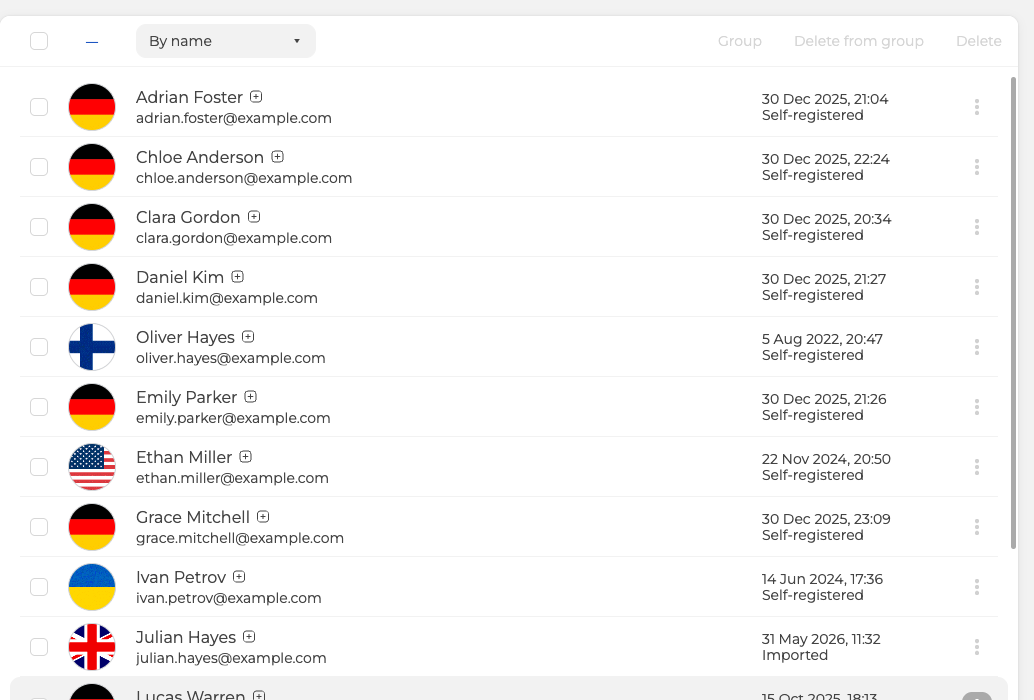
Once you can see how many potential viewers you have, settle on the plan that covers them.
Paying for a plan
To move to a paid plan, open "Subscription" in the control panel and click "Upgrade plan".
Then pick the term on the left and the number of viewers with the slider on the right. If you need a room larger than the one checkout offers, contact us through the online chat, because the platform serves audiences of up to 5,000 attendees.
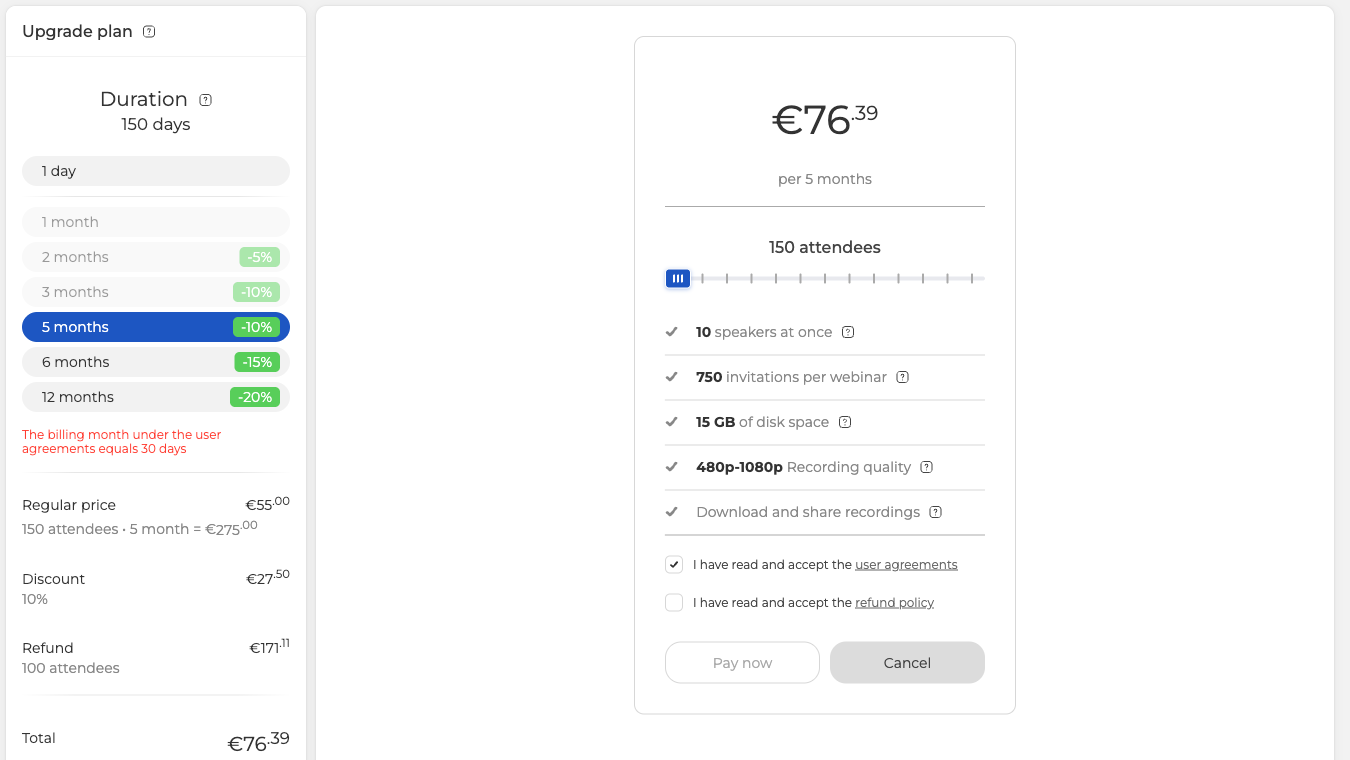
The price breaks down as you choose. "Regular price" is the list price for that combination, "Discount" is what the term saves you, and "Refund" is the credit for the days you have already paid for, which is explained below. A note under the term list spells out that a billing month means 30 days.
Two boxes have to be ticked before "Pay now" becomes available, one for the user agreement and one for the refund policy.
Next, pick how you want to pay. There are four options.
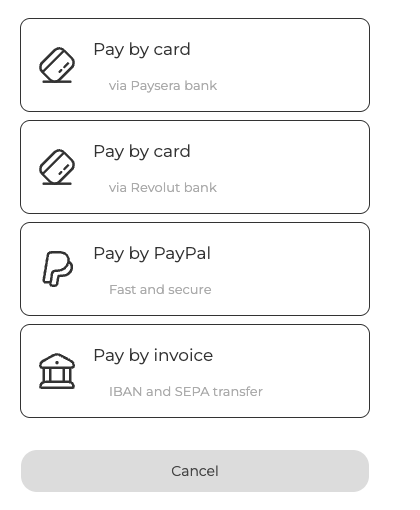
- "Pay by card" through Paysera bank.
- "Pay by card" through Revolut bank.
- "Pay by PayPal".
- "Pay by invoice", which is an IBAN and SEPA transfer.
Choosing one takes you to that provider to finish the payment. Nothing is charged automatically at any point, and Will my payment card be automatically charged? covers why.
If you are paying as a company, fill in your company details first, behind "Company details" on the "Subscription" screen, because that is what the invoice is made out from.
Discounts for longer subscriptions
Besides paying for a single day, you can subscribe by the month or by the year. That suits anyone who runs webinars regularly, and it costs less:
- 5% off for 2 months
- 10% off for 3 months
- 10% off for 5 months
- 15% off for 6 months
- 20% off for 12 months
A subscription is also less to keep track of, because access no longer needs renewing before every event.
How to tell when your plan ends
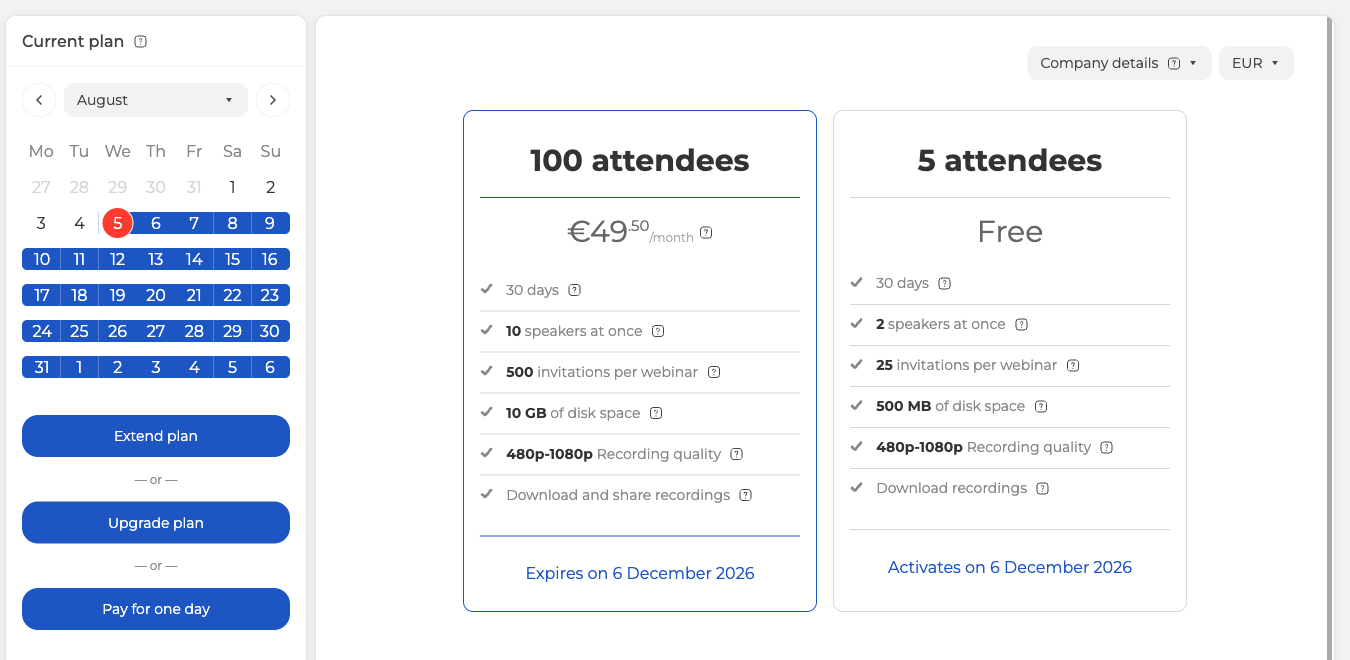
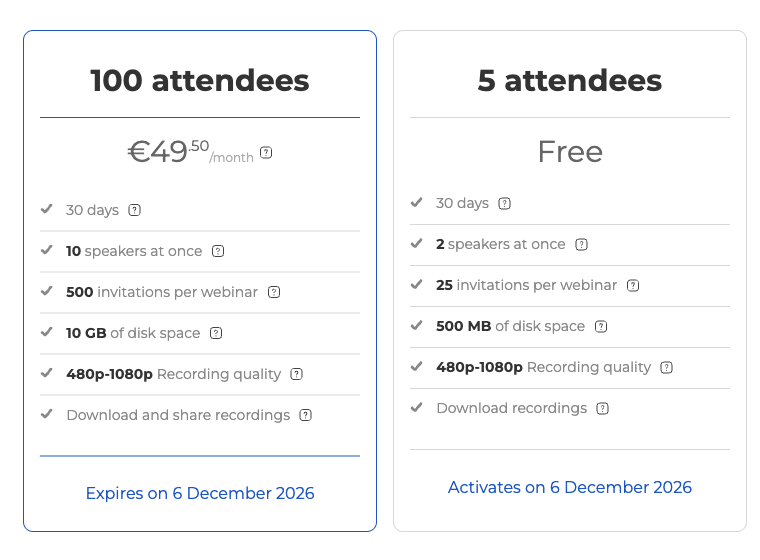
The end date of your plan is shown in blue text on your plan card.
The calendar marks the days your plan is active with a blue line. On the day a paid account runs out, a red card icon appears in the calendar.
The day plan
If your event is a one-off, pay for a single day. On the "Subscription" screen, click "Pay for one day", the last of the three buttons. In the menu that opens, pick the date you have planned your webinar for. Then choose the number of viewers, agree to the refund policy and click the payment button.
The day plan comes with restrictions. It does not let you use OBS for your live stream, share a link to the recording, set your own domain, run paid webinars or connect the Telegram bot for notifications.
Extending a plan
If you need to extend your plan by one month or more, you can do that at any time. Click "Extend plan", the first of the three buttons pictured above. Then choose how long you are extending for, agree to the refund policy and pay.
Upgrading a plan
If your webinar capacity or your storage is no longer enough, you can move up at any point. Click "Upgrade plan", the second button in that column. Then choose the number of attendees you need and the term, agree to the refund rules and pay, exactly as with extending a plan.
The days you have already paid for are not lost. The cost of your current package is divided by 30 and multiplied by the number of paid days you have left, and that sum is subtracted from the price of the new one. The checkout shows it on the line called "Refund", with the plan it is credited from named underneath.
If more people turn up than you paid for
The attendee number on your plan is the size of room you get, not a hard limit on the day. A presenter can widen the room from inside it while the event is running, through "Increase seats" in "Room settings" in the room menu, and the free Starter plan has the option too. Each purchase adds 100 seats, it can be repeated as often as you need, and those seats expire with the webinar rather than staying on your plan. The platform's own limit of 5,000 people in one room still applies. Extra seats during a webinar goes through the purchase, including where the price appears and why it covers only the webinar you bought it in.
So size the plan for the audience you actually expect rather than for the best turnout you can imagine. Paying all year for headroom you use twice costs more than buying it on the two days you need it, and running short mid-event is a few clicks rather than a lost webinar.
Where to see prices
All current plans and terms are on the pricing page. If you are already registered, open "Subscription" in your control panel, which shows your current plan, the buttons that extend or upgrade it, and every invoice you have generated under "Billing history".
Frequently asked questions
I am partway through a plan and need more seats. Do I lose the days I have already paid for?
No, they are credited against the new plan. The cost of your current package is divided by 30 and multiplied by the number of paid days you have left, and that sum is subtracted from the price of the new one. The checkout shows it on the line called "Refund", with the plan it is credited from named underneath. That is the route when you need the bigger room from now on. If instead a single event has outgrown its room, the host can buy seats inside the room while it runs, and those expire when the webinar ends.
Will my card be charged again when the plan runs out?
No, nothing is charged automatically at any point, and will my payment card be automatically charged? explains why. Watch the end date instead, which is shown in blue text on your plan card, and a red card icon appears in the calendar on the day a paid account runs out.
Can I use OBS on the one-day plan?
No. The day plan does not let you use OBS for your live stream, and it also rules out sharing a link to the recording, setting your own domain, running paid webinars and connecting the Telegram bot for notifications. You buy it with "Pay for one day" on the "Subscription" screen, picking the date your webinar is planned for.
Does my free plan expire if I stop using it for a while?
The plan itself never expires, but a free account has to be signed into every six months to survive, so a visit to the control panel between events keeps it alive. What the plan holds stays the same throughout, which is 5 attendees, 2 speakers at once, 500 MB of cloud storage and 20 minutes of recording.
I need the invoice made out to my company. What do I fill in first?
Fill in your company details behind "Company details" on the "Subscription" screen before you pay, because that is what the invoice is made out from. "Pay by invoice" is the IBAN and SEPA transfer option among the four payment methods, and every invoice you have generated sits under "Billing history" on that same screen.
