
Public events in a webinar room
A webinar room skips the scheduling step and the registration form. Everyone joins through the same link, in one click, whenever you open the room. That suits open office hours, quick huddles and any session you want people to walk into without filling anything in first.
The link belongs to the room rather than to a particular event, so it keeps working for every session you hold there.
Create the room
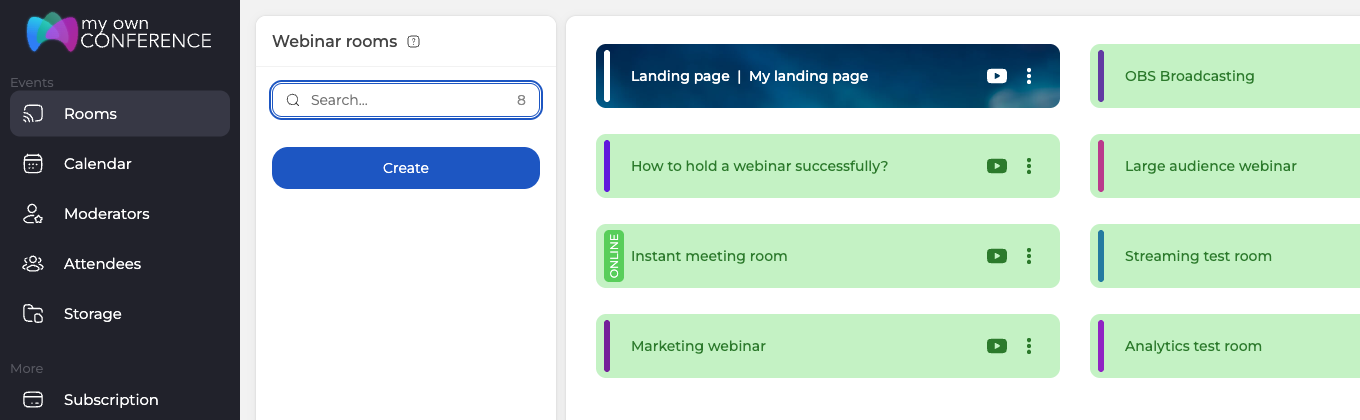
Open "Rooms" in the control panel and click "Create".
The room settings open with a name already filled in. Change it if the name matters to you, or leave the suggestion.
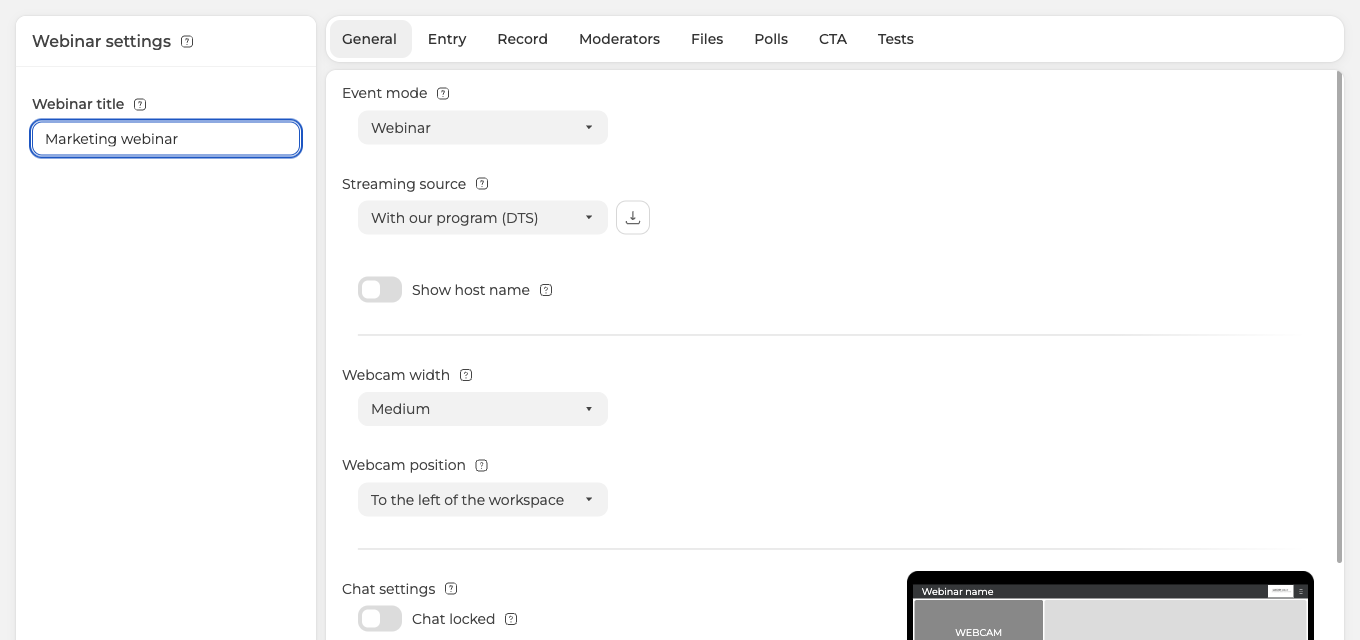
Two things on the General tab are worth setting before anything else. "Event mode" decides whether the room behaves as a meeting, where everyone can speak, or as a webinar, where the audience watches. "Streaming source" picks how you broadcast, either in the browser over WebRTC, through our DTS app, or from OBS.
The rest of the tabs cover entry rules, recording, files, polls, CTA buttons and tests. You can leave them alone for now and come back once the room exists.
Add the people who will present
Open the "Moderators" tab. Everyone in your account is listed here, and the checkbox decides who is invited to this particular room.
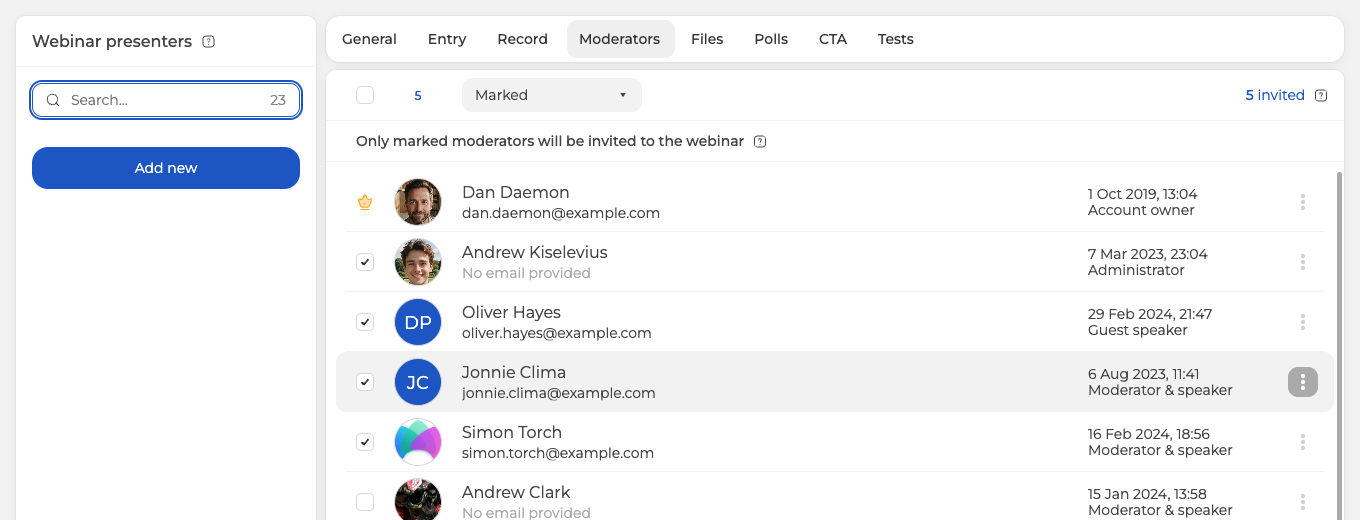
Only marked moderators are invited, which is what the note above the list means. "Add new" creates a moderator who is not in your account yet.
Roles matter here. An account owner reaches everything, an administrator and a moderator and speaker can both broadcast and run the room, and a guest speaker joins to present without the wider controls. Our guide to moderator and presenter management goes through the differences.
Click "Done" to save the room.
Hand out the links
Click the three dots on the room and choose "Links".
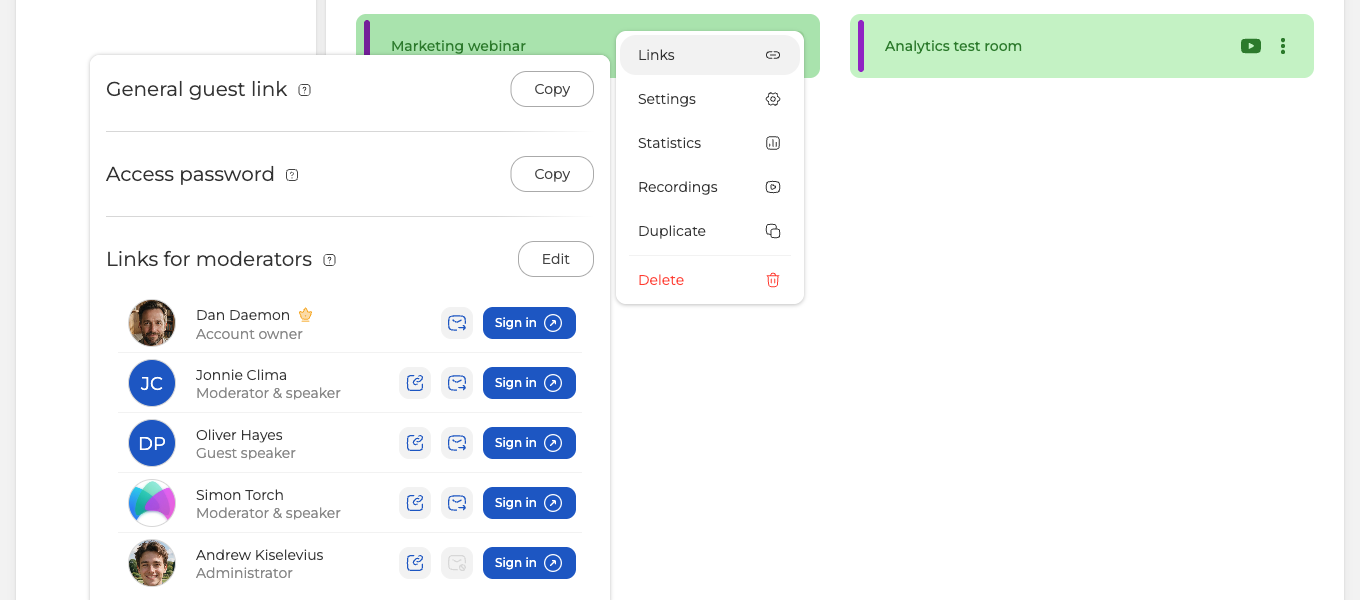
"General guest link" is the one you send to your audience. Click "Copy" and share it through a messenger, by email, or anywhere else. It is the same link every time, so it can live in a calendar invite or on a page of your own.
"Links for moderators" gives every presenter their own way in. Each row has three controls, and their tooltips name them.
- "Copy link" puts that person's personal link on your clipboard, ready to paste into a messenger.
- "Send link" mails it to them. It stays greyed out for anyone on the list without an email address on file.
- "Sign in" opens the room as that person, which is how you enter yourself and how you check what a presenter will see.
If the room has an access password set, this panel carries a Copy button for it as well, so the link and the password travel together.
Attendees never need an account. They open the guest link and they are in. Attendee registration not required covers what that means for the people you invite.
If the guest link does not behave the way this describes, open the online chat and tell us the room name and what an attendee sees when they open it.
Frequently asked questions
Does the guest link change from one session to the next?
No, it stays the same. The link belongs to the room rather than to a particular event, so it keeps working for every session you hold there. Copy it once from "General guest link" and you can publish that one address wherever your audience will look, including a calendar invite or a page of your own.
Do attendees need an account or a registration form?
Neither. A webinar room skips the scheduling step and the registration form, so attendees open the "General guest link" and they are in, in one click. Nothing is filled in first and no account is created.
How do I get into the room myself?
Through "Sign in" on your own row under "Links for moderators", which opens the room as the person whose row you clicked. Use it on somebody else's row to see what that presenter will see before the event starts. Both sit in the panel behind the three dots on the room, under "Links".
What happens if I do not tick anybody on the Moderators tab?
You host the room alone. Only marked moderators are invited, and the account owner carries a gold crown instead of a checkbox and cannot be unticked, so ticking nobody else leaves the owner as the only host. Moderator and presenter management goes through what each role reaches.
Why can I not mail the link to one of my presenters?
Because that person has no email address on file. "Send link" stays greyed out for anyone on the list without one, so use "Copy link" on the same row and paste their personal link into a messenger instead. Somebody added through "Add new" without an address shows as "No email provided", which is how you spot who is affected.
