
Starting a scheduled webinar
A scheduled webinar has no launch control of its own. It goes live when one of its hosts signs in and goes on air, so the start sits with the hosts rather than with a button. An automated webinar is the exception, because it plays its recording on schedule with nobody present. If the event itself is not built yet, the step-by-step guide to setting up a webinar from scratch covers everything that comes before this page.
There is a button labelled "Start webinar" in "Calendar", and it does something else entirely. It opens a brand new instant room on the spot, so pressing it will not start the event you scheduled and your audience will be waiting at another address. Planning a webinar covers the three buttons under the month grid.
How a host gets in
Open "Calendar", click the three dots at the end of the webinar's row and choose "Links".
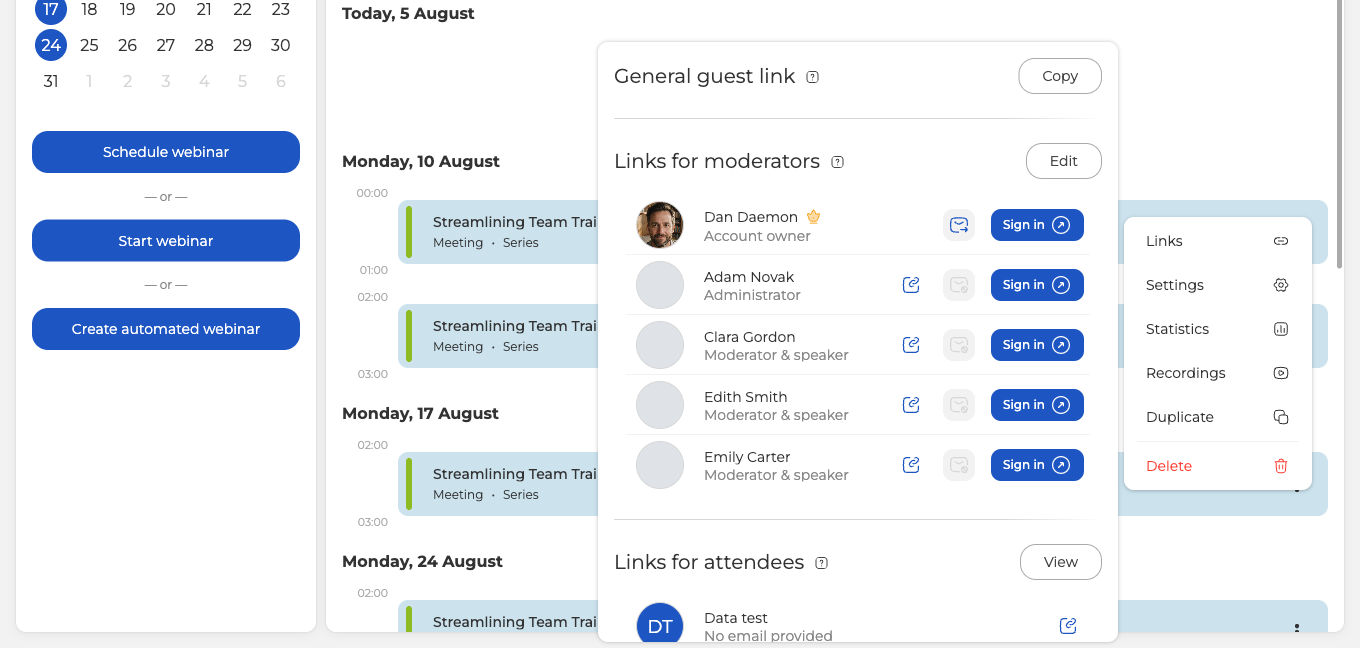
"Links for moderators" lists every host of the event. Find your own row and press "Sign in", which opens the room as you. The copy icon beside it puts that person's personal link on your clipboard and the envelope mails it to them, which is how your other hosts usually arrive, from the invitation rather than from this panel.
A host link always carries "/moderator/" in its address and an attendee link never does, so that segment is the quickest way to check what you are about to send and to whom. The one your audience needs is the general guest link at the top of the same panel.
On the way in, the room offers a device and connection check. "Start" runs it and "Skip" goes straight through.
Entering the room is not going on air
This is where "nothing happened" usually comes from. Signing in puts you in the room, but your camera and microphone stay off until you press "Speak". Until somebody does, an attendee who is already inside sees an empty room and hears nothing. The webinar room for presenters covers the room itself once you are live.
How to tell that a webinar has started
The event carries a green "ONLINE" badge in "Calendar" for as long as a host is in the room.
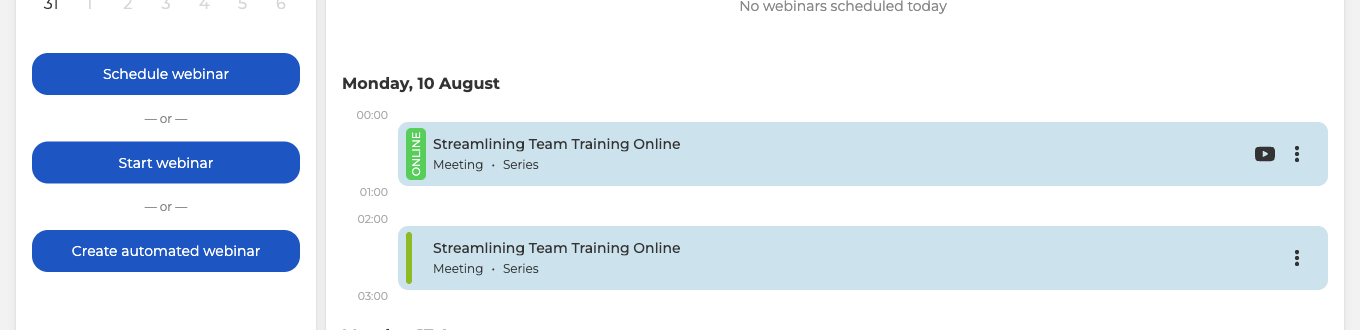
The badge follows presence rather than a one-way switch. It appears when the first host enters and it disappears again when the last one leaves.
Going in early
Hosts are not held to the schedule. Sign in and you are in the room, even days ahead of the event, which is the whole point of arriving early. Upload your presentation, check your camera and be ready before anybody else turns up.
Attendees are held to it. Until the entry window opens they get the event page with a countdown instead of the room. That window is "Allow entry before" on the "Entry" tab of the webinar settings, and it opens 30 minutes ahead of the event unless you change it.
One thing to know before you go in early. If "Auto-start upon any moderator's login" is switched on, recording begins the moment you sign in, so your setup lands in the file along with the webinar. Automatic webinar recording covers that switch.
If the webinar will not start
- Nobody is on air. Being in the room is not enough. Somebody has to press "Speak".
- Your audience has the wrong address. Send them the general guest link from the "Links" panel, not your own, which carries "/moderator/".
- It is still too early for them. Attendees cannot get in before the window set by "Allow entry before", however long a host has been waiting inside.
- You pressed "Start webinar" and landed somewhere unfamiliar. That button opens a new instant room, so leave it and go back to your scheduled event in "Calendar".
If none of those is your case, open the online chat and tell us the event, the time it was due to start and what you see when you press the button.
Frequently asked questions
Does a scheduled webinar start on its own at the time I set?
No. It goes live only when one of its hosts signs in and goes on air, so nothing happens at the scheduled hour if nobody arrives. An automated webinar is the exception, because it plays its recording on schedule with nobody present.
How do I let attendees in earlier than half an hour before the start?
Change "Allow entry before" on the "Entry" tab of the webinar settings, which is the window that decides when the doors open and which sits at 30 minutes ahead unless you move it. Until it opens, attendees get the event page with a countdown instead of the room, however long a host has been waiting inside.
I want to sign in early and set up. Will that go into the recording?
It will if "Auto-start upon any moderator's login" is switched on, because recording then begins the moment you sign in and your setup lands in the file along with the webinar. Hosts can sign in days ahead of the event, so this is worth checking before you go in to upload your presentation and check your camera. Automatic webinar recording covers that switch.
Do my co-hosts need me to send them anything?
Usually not, because your other hosts arrive from the invitation they were mailed rather than from this panel. If somebody has lost theirs, "Links for moderators" carries a row for every host of the event, where the copy icon puts that person's personal link on your clipboard and the envelope mails it to them. Check the address carries "/moderator/" before you send it, because that segment is what separates a host link from an attendee one.
Can I test my camera and microphone before anybody sees me?
Yes. The room offers a device and connection check on the way in, where "Start" runs it and "Skip" goes straight through. Your camera and microphone stay off until you press "Speak", so nobody sees or hears you until you do, even if an attendee is already inside.
