
Permanent-link room
When you schedule a new webinar, the system generates a link that works for that event and nothing else. The webinar ends, the link goes dead. That default keeps your calendar tidy and stops old addresses leading anywhere they should not. Sometimes you want the opposite, though, with one link that serves event after event so your audience never has to hunt for a new one. There are three ways to get it.
When one permanent link helps
- A course or a training series, where a single address means nobody loses their way in halfway through.
- Regular meetings such as a weekly working group, where people should always know where to go.
- An event you repeat on a schedule, for example a monthly webinar on the same topic. You hand out the link once instead of every month.
- A large or frequently changing audience. People save the link the first time and use it from then on.
- Newsletters, your website and your social accounts, where a link that never expires needs no maintenance.
Option 1. A series of webinars
If you already know your dates, plan the events as a series. You can book several webinars in advance, say weekly sessions on one topic or a month-long course of four classes, and the system gives the whole series the same URL.
Your participants then use one link for every session. You send the invitation once and nobody has to register again, which is what makes a series suit courses and standing meetings. The webinar series guide covers how to plan one as a run of events tied together by a theme rather than as a single date.
History and statistics are stored exactly as they are for standalone events, so you can see who attended and how long each person stayed in each session.
How to create a series
Start a new webinar from the calendar. "Schedule webinar" is the usual route, and "Create automated webinar" builds a series that plays a recording instead.
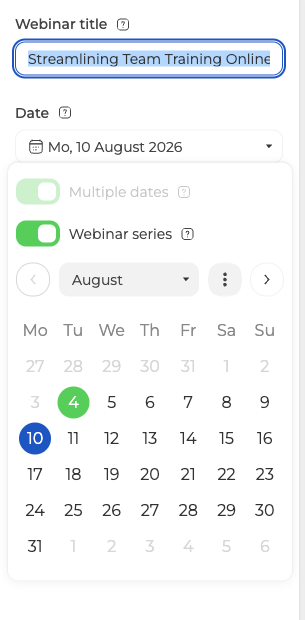
Open the date field and switch on "Multiple dates". "Webinar series" turns itself on at the same moment, and that is the setting that ties the events together on one link.
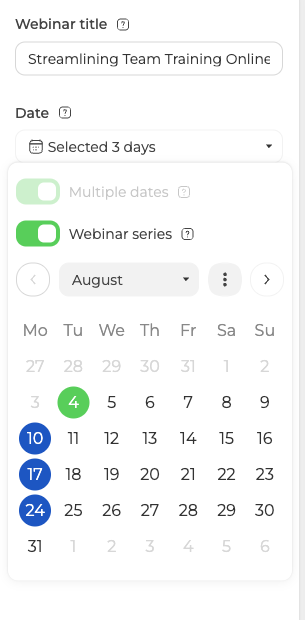
Now pick every day the series runs on. The field reports how many you chose.
Configure the event, attach your presenters and attendees, upload your materials, then click "Done".
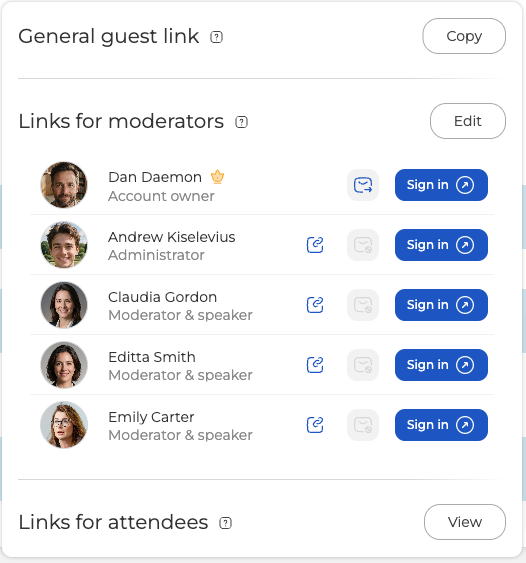
Collect the access link from the webinar's "Links" menu, not from a room, because a series lives in the calendar. The panel has three blocks. The general guest link is the permanent one, shared by every session in the series, "Links for moderators" gives each host a personal sign-in link, and "Links for attendees" is where you copy a personal link by hand for anyone invited without an email address.
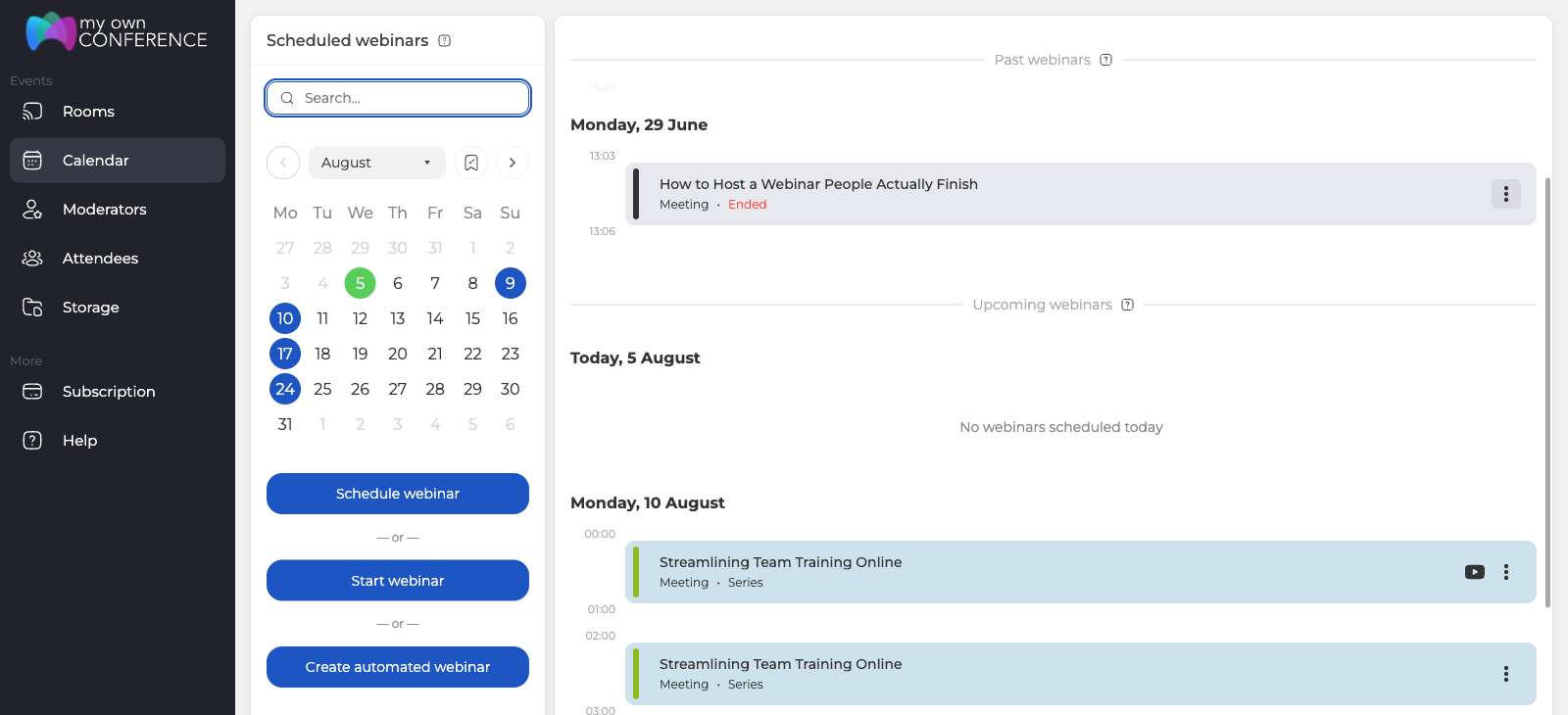
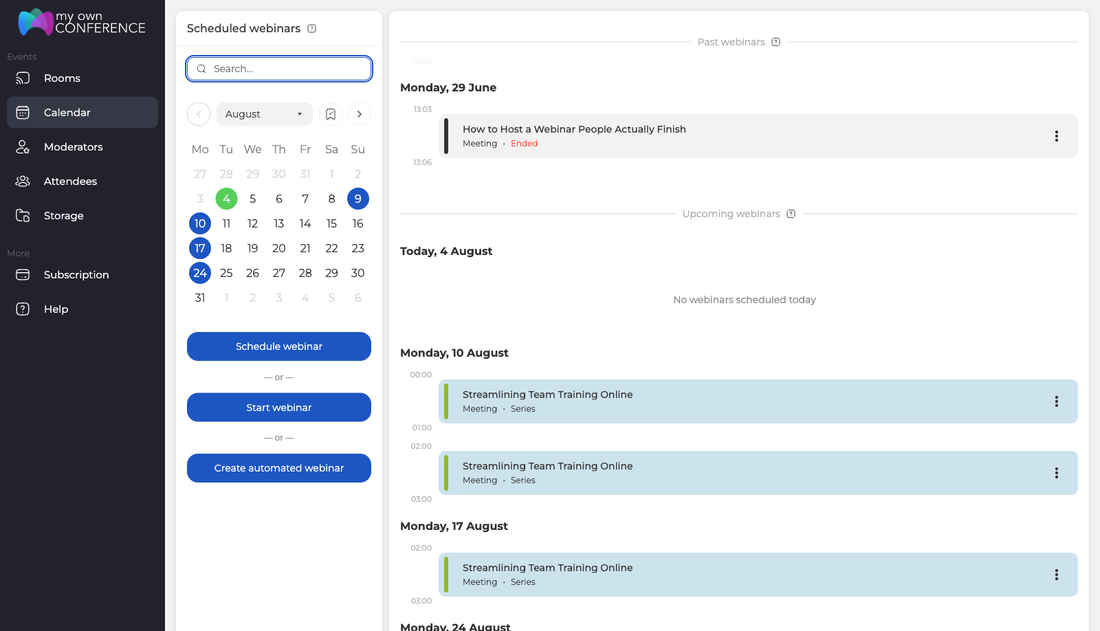
Every webinar in the series then appears in your calendar, each one marked "Series".
Option 2. Cloning a webinar
Sometimes a webinar goes well and you want to run it again without moving your audience to a new address. Clone it, and the copy lands on the link of the original.
That gives you a series without planning the dates up front. You clone the webinar when you need it and hold events as they come, which is the usual case with recurring training.
How to clone a webinar
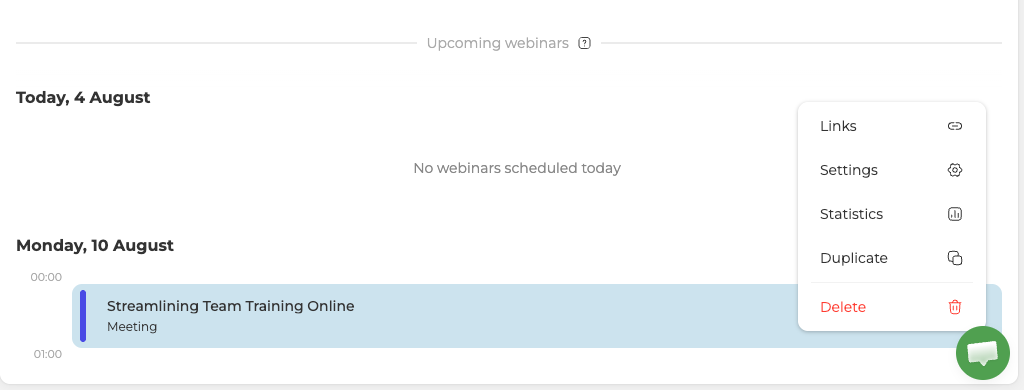
Find the webinar you want to reuse, open its menu and choose "Duplicate". This works on a finished webinar as well as an upcoming one.
A confirmation window explains what is about to happen and gives you two switches.
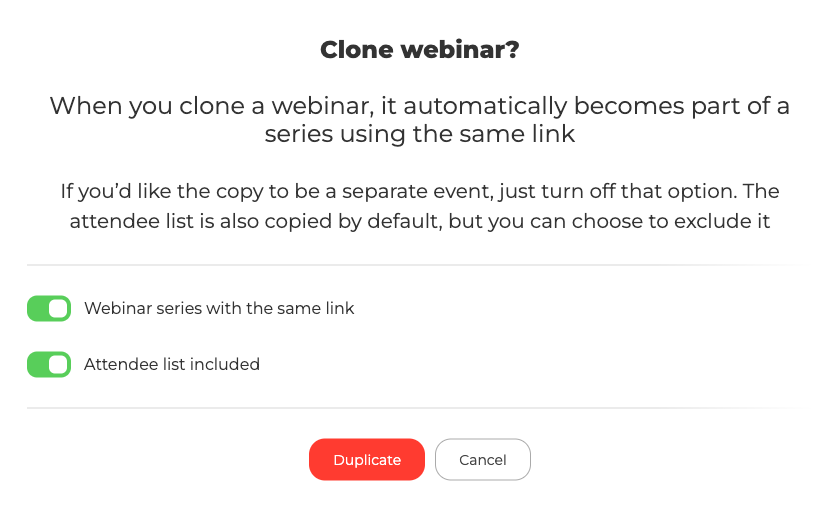
"Webinar series with the same link" is what puts the copy on the original address. Turn it off and you get an ordinary standalone event instead. "Attendee list included" copies everyone who was already registered, which is the point if you want to stay connected to that audience, so turn it off when the new event is for different people.
The editor then opens with series mode already on, and the panel is titled "Webinar series settings" rather than "Webinar settings". "Multiple dates" is switched on and locked, because a series needs at least the option of more than one day.
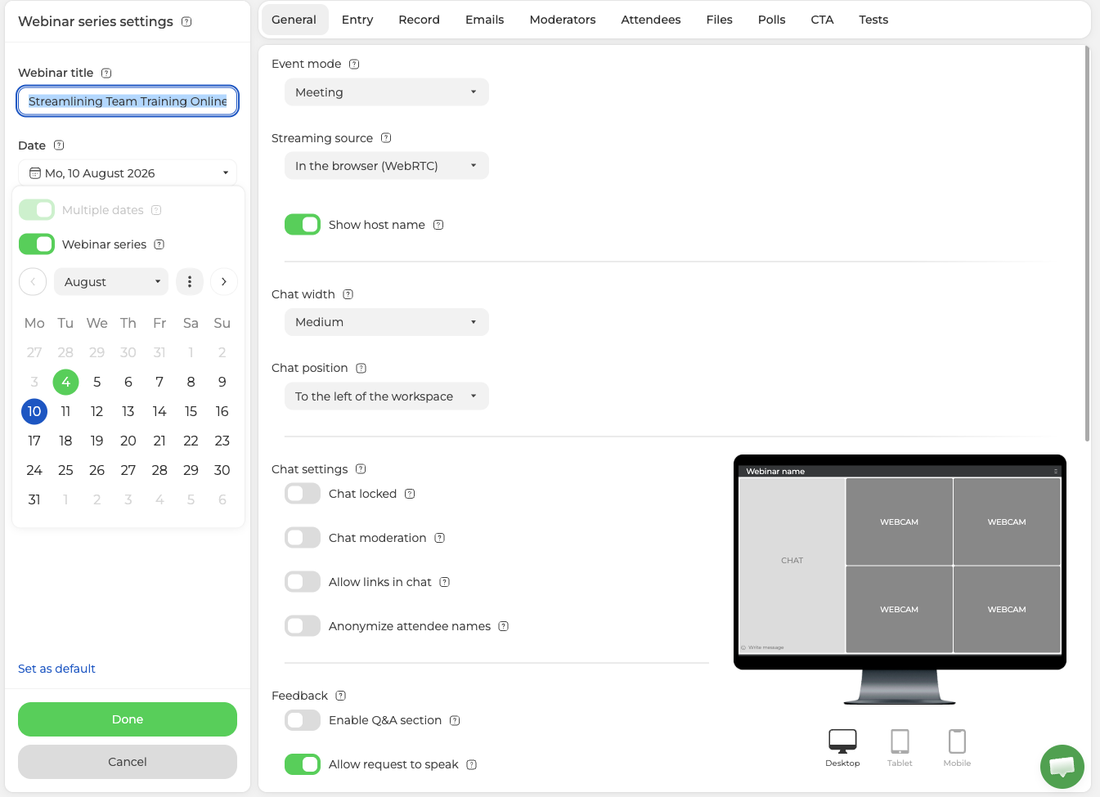
From here you pick one day or several, configure the event and finish scheduling as you would for a new series. What you end up with is a fresh webinar, or a whole series, sitting on the link of the original.
Option 3. A permanent webinar room
A webinar room, also called a permanent or instant webinar, is a virtual space available 24 hours a day on a link that never changes. Participants can come in whenever it suits them, as long as your settings allow it. You can create as many rooms as you need, from internal meetings to public events. What your plan limits is the audience rather than the number of rooms, which do you offer packages with several webinar rooms sets out.
Rooms live in the "Rooms" section of your control panel. "Create" starts a new one.
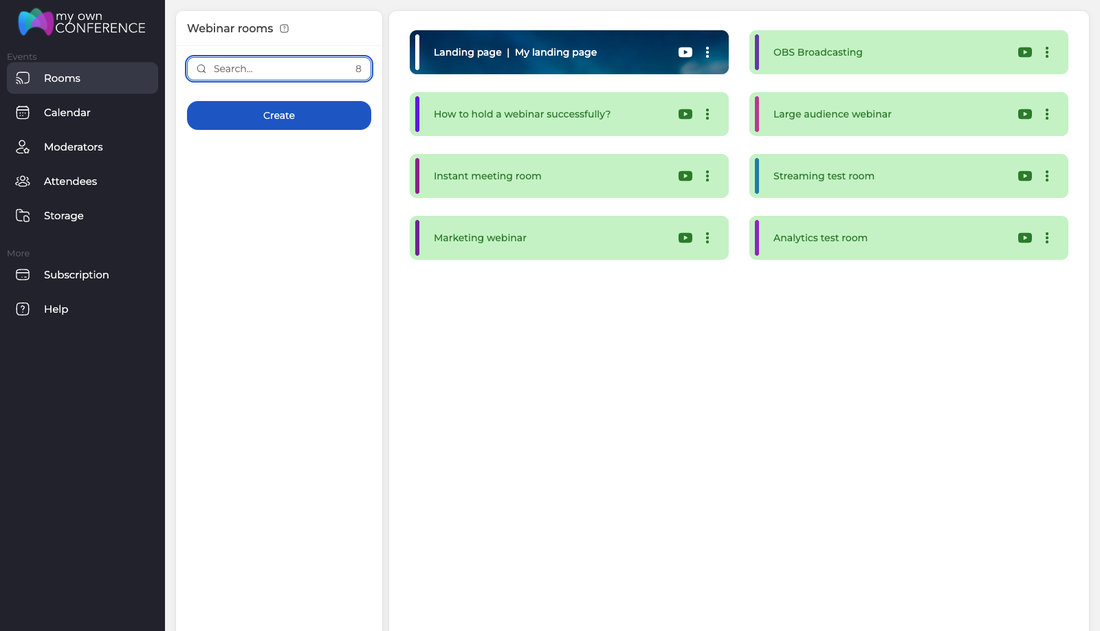
Fill in the room settings. The name comes prefilled, and the tabs across the top cover entry rules, recording, presenters and your materials, exactly as they do for a scheduled webinar. A room has eight of them rather than ten, because there is no date to send emails about and no attendee list to invite.
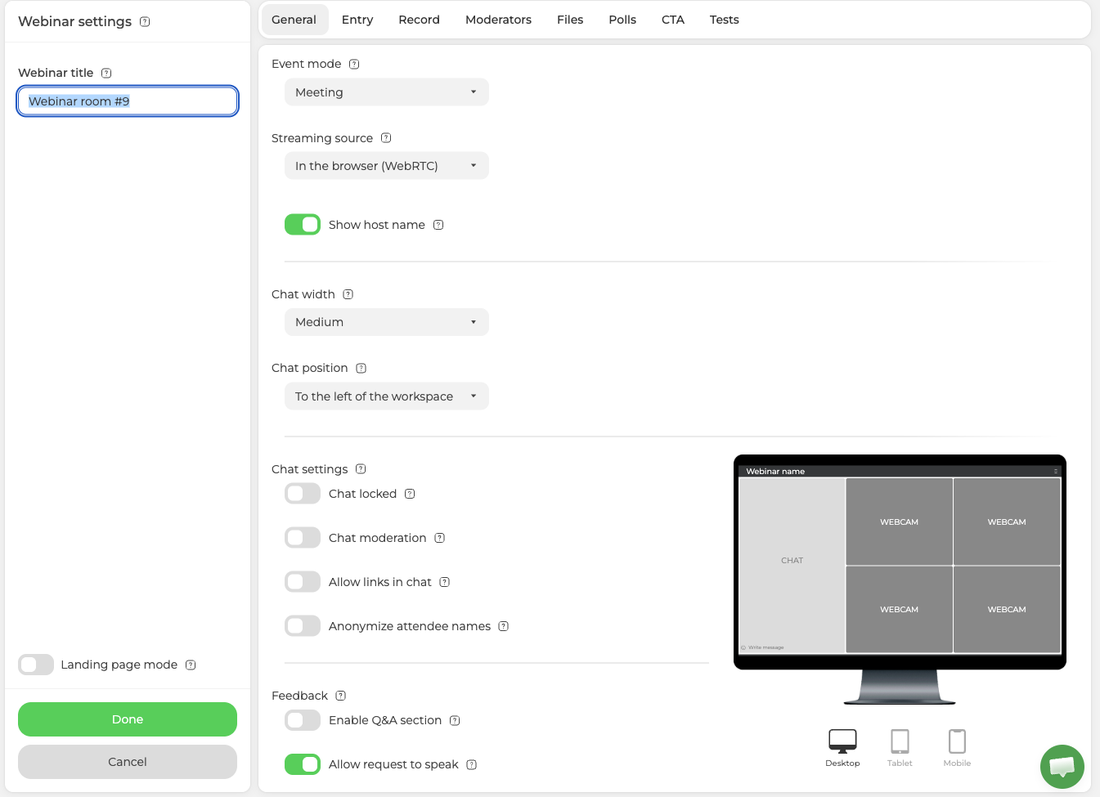
Click "Done" and the room is ready to use. To start a session right away, open the room's "Links" menu and sign in. You skip the planning and the mail-out entirely.
Inviting people to a permanent room
Open the room menu and choose "Links". The general guest link is the address you hand out, and every presenter below it has a personal sign-in link.
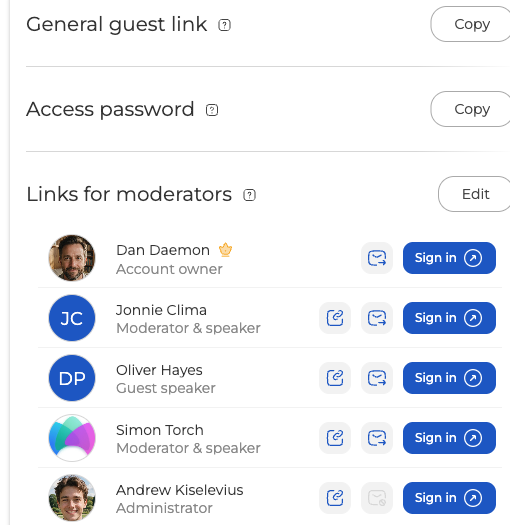
The envelope beside a presenter sends them their link by email, and it stays greyed out for anyone without an email address on file. If the room has an access password set, this panel carries a Copy button for it too, so you can pass the link and the password on together. The platform sends nothing to your audience for a permanent room, so distributing the guest link is entirely down to you.
Because that link never changes, anyone who received it once can walk into a later session in the same room. If you run meetings for separate groups, schedule ordinary webinars for them instead.
Adding presenters
Open the room's "Moderators" tab. Everyone in your account is listed, and the checkbox decides who is invited to this room. "Add new" creates someone who is not in your account yet, and anyone you give an email address is written to straight away. Somebody added without one is listed as "No email provided" and gets nothing, so hand them their personal link yourself from the "Links" menu. Moderator and presenter management goes through the roles and what each one reaches.
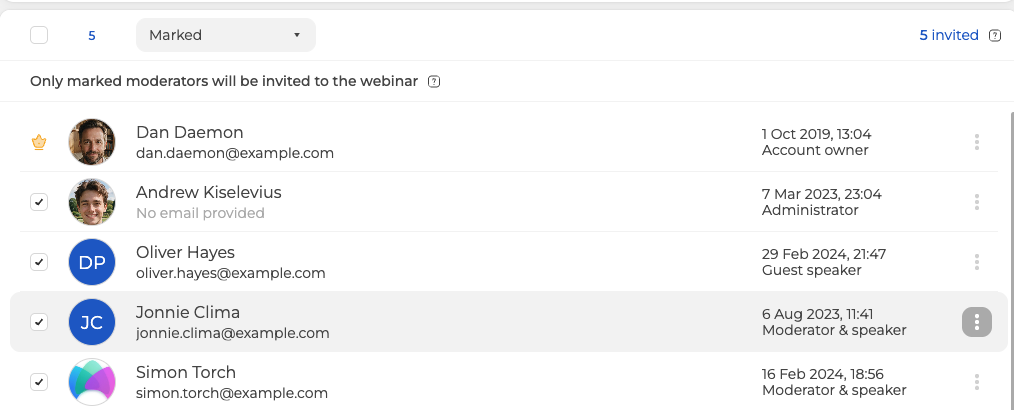
The account owner carries a crown instead of a checkbox, because that access cannot be removed.
Closing the room off
To restrict access, turn on "Access password" in the room's "Entry" tab. A password is generated for you, and the round button beside it makes a new one.
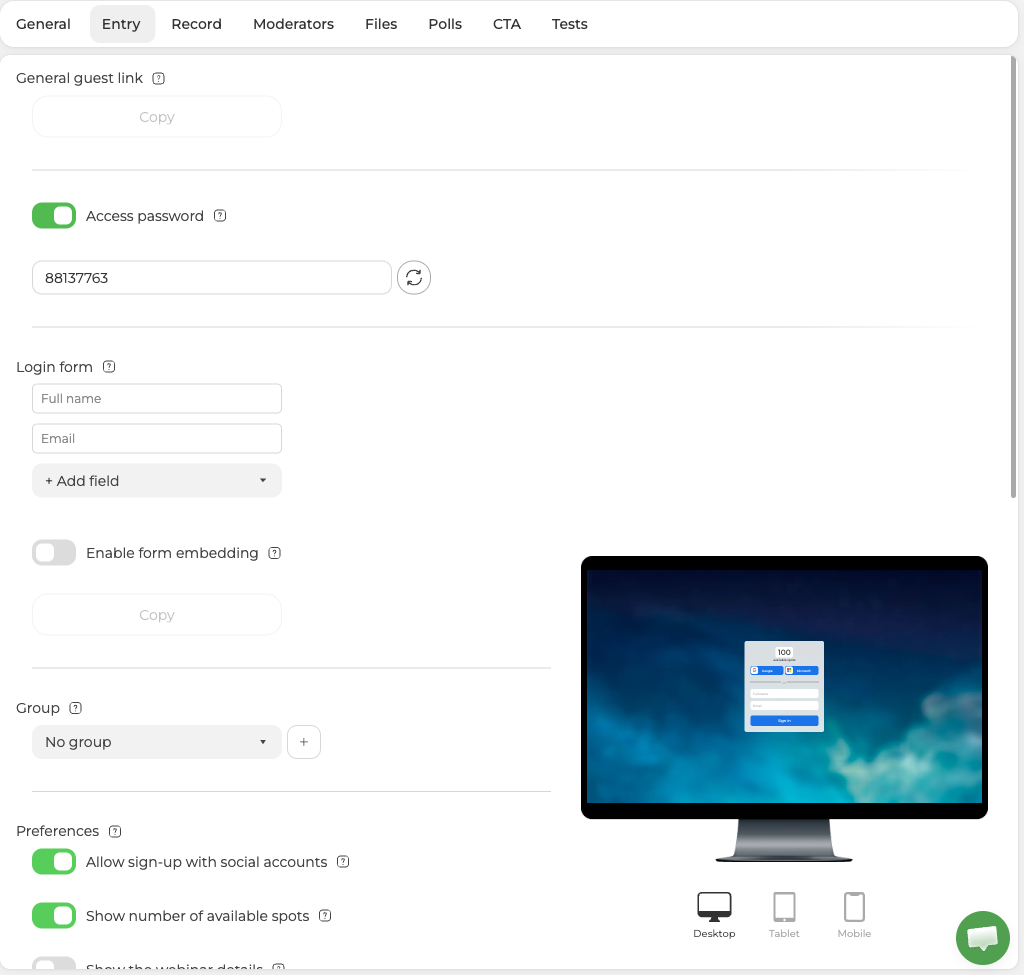
From then on nobody using the general link reaches the room without it, which is also how you hold a closed meeting on an otherwise public link. Invite the people you want as presenters, since each of them enters through a personal link rather than the guest one, then set the password before you begin. Your presenters walk straight in while everyone holding the general link is stopped at the prompt.
Mothballing a room with landing page mode
If you want to take a room out of service but keep its link alive, switch on "Landing page mode", which Landing page mode covers in full. Anyone following the old address then reaches a page where they leave their contact details to hear about future events, so a retired link goes on collecting contacts instead of returning an error.
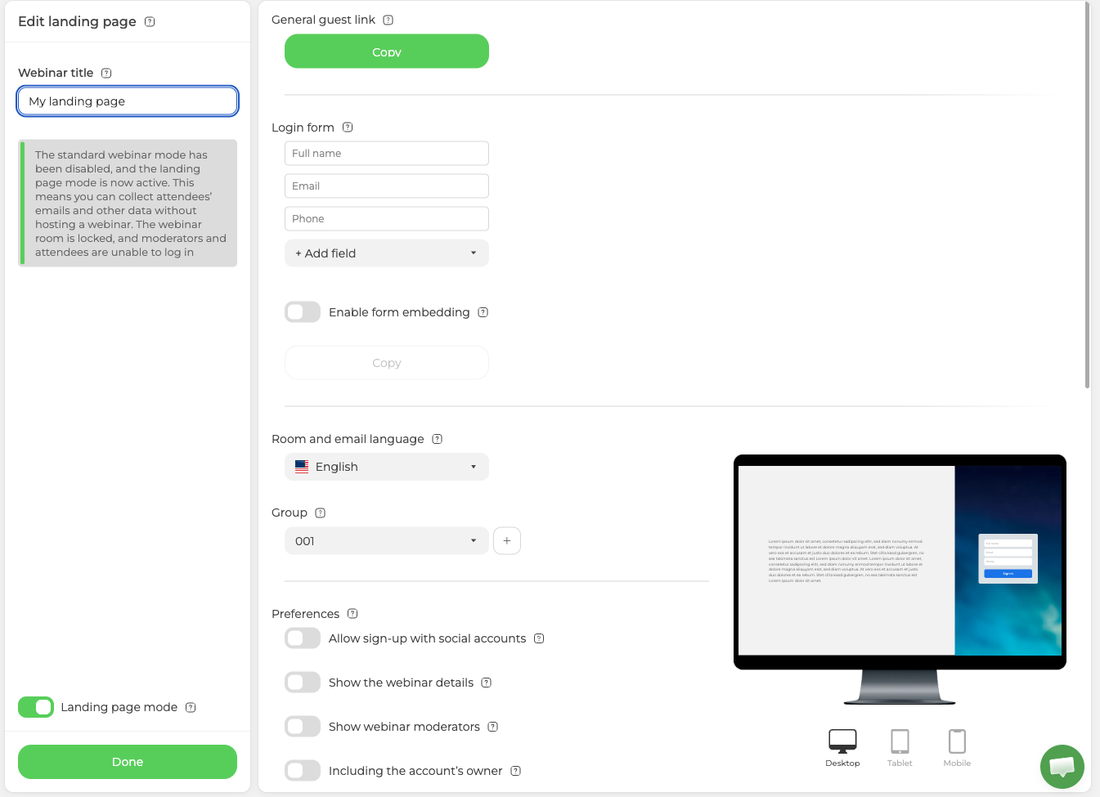
Switching it on takes effect at once, and the panel asks you to confirm because turning the mode on ends any session running in the room and logs every attendee out. Wait until the room is empty unless you mean to clear it. After that the room stays locked for as long as the mode is on, and neither moderators nor attendees can log in. Set a dedicated group for the page before you publish it, and everyone who signs up joins that group, which is how you find them later under "Attendees" without sifting through the rest of your contacts.
The room as a repository
Signing in from the "Links" menu drops you straight into the room, which stays exactly as you left it.
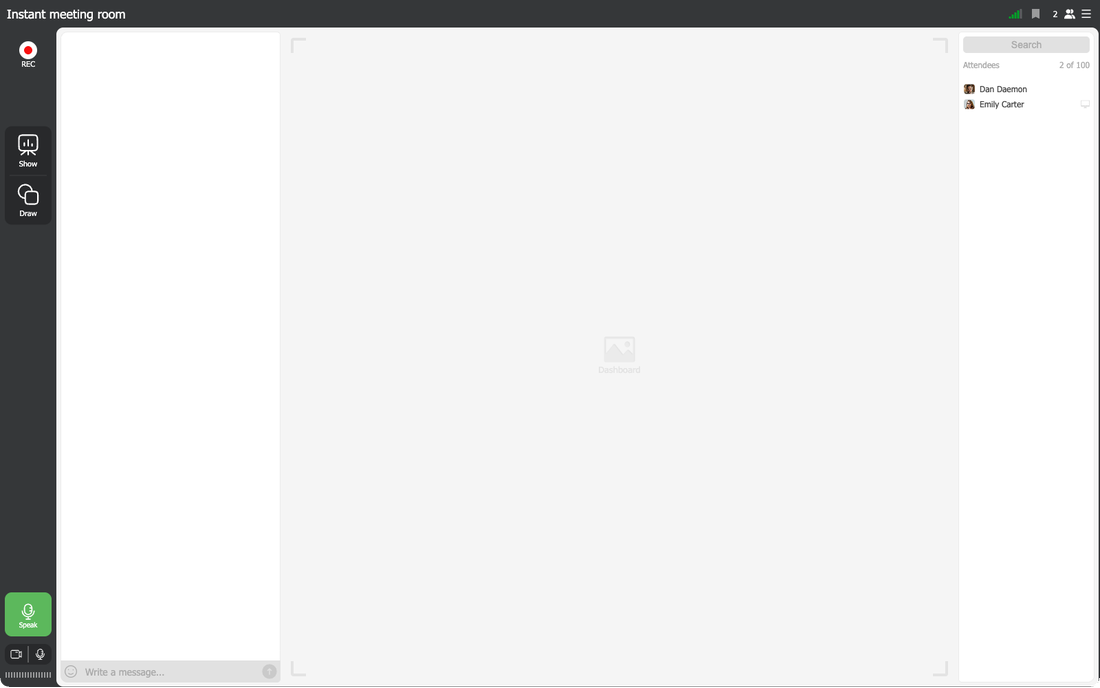
"Show" in the left toolbar opens your materials. The tabs across the top separate presentations, media, screen sharing, recordings, polls, surveys and calls to action, and the plus button adds a new file to whichever tab you are on.
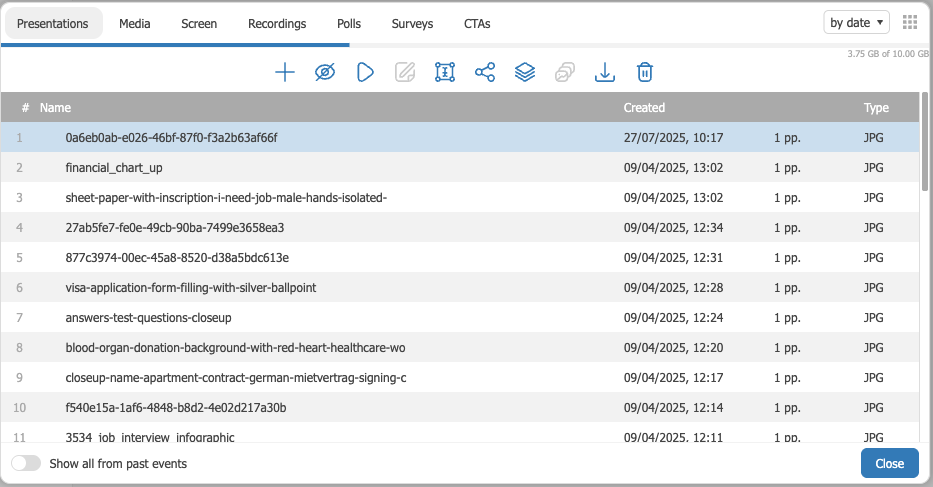
That makes a permanent room a useful standing store between sessions. Anyone with presenter rights can download what you leave there and upload material of their own, and "Restrict access" closes an individual file off, per file rather than for the room as a whole. Your audience never browses that store, so the way to put a document in somebody's hands during a session is to send it to the chat. The webinar room for presenters covers both controls.
You can also leave a test or a survey running so people drop in and take it at a convenient time, and students often use the room to talk to each other after class. All the room and landing page settings are saved, so nothing has to be configured again the next time you come in.
Which option to pick
A series is the answer when your dates are already fixed and one invitation should cover all of them. Clone a webinar instead if you want the same link but a schedule you decide as you go. And when the space itself should stay open around the clock, use a permanent room, with a password or landing page mode on it for the stretches when it should not be.
If you are not sure which of the three fits what you are planning, open the online chat and describe the schedule you have in mind, since the answer usually follows from the dates.
Frequently asked questions
What happens to people inside the room when I switch on landing page mode?
They are all logged out. Turning the mode on ends any session running in the room, which is why the panel asks you to confirm, so wait until the room is empty unless you mean to clear it. The room then stays locked for as long as the mode is on, and neither moderators nor attendees can log in.
Someone I no longer want in the room already has the link. What can I do?
The room link never changes, so you cannot shut them out by replacing it. Turn on "Access password" in the room's "Entry" tab instead, and the round button beside it makes a new password whenever you need one. From then on nobody using the general link reaches the room without it, and if you run meetings for separate groups it is cleaner to schedule ordinary webinars for them.
Can my audience download the files I leave in a permanent room?
No. Your audience never browses that store, and only people with presenter rights can download what you leave there or upload material of their own. To put a document in somebody's hands during a session, send it to the chat, and the webinar room for presenters covers both controls.
Does a cloned webinar bring the old attendee list with it?
Only if you leave "Attendee list included" switched on in the confirmation window, and then everyone who was already registered is copied across. Turn it off when the new event is for different people. The other switch, "Webinar series with the same link", is what puts the copy on the original address, so turning that one off gives you an ordinary standalone event instead.
Do I get separate attendance figures for each session in a series?
Yes. History and statistics are stored exactly as they are for standalone events, so you can see who attended and how long each person stayed in each session. Every webinar in the series appears in your calendar in its own right, each one marked "Series", even though they all share one link.
